Products and inventory

Rental fleet management software with one pool for every mode

Rent, sell and subscribe the same items, and separate counts drift apart fast. Rental Suite keeps one pool of units for each product and works out what's free for each mode from the bookings and orders against it.

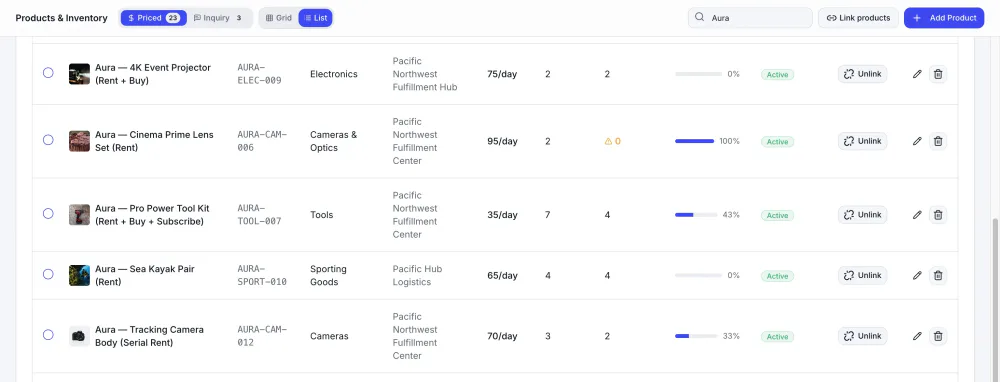
Products list with total units, units available and utilization bars for a projector, lens set, tool kit, kayak pair and camera body, plus two items in maintenance

01See it in action

See rental fleet management in the admin

A short walkthrough in the Rental Suite admin, with voiceover. It plays muted; press Play with sound to hear it from the start.

Read the setup guide

02Overview

Rental fleet management in Rental Suite

Rental fleet management software keeps one honest count of what you own and what's already promised. In Rental Suite each product has a Total Units number, and rentals, subscriptions and purchases all draw on that one pool instead of keeping separate stock for each.

A rental takes units for its dates. A subscription takes a unit while it runs. A purchase takes one for good. Rental Suite subtracts each of these where it applies, so the product page, the cart, checkout and New Booking all work from the same number of free units.

Set the size of your fleet

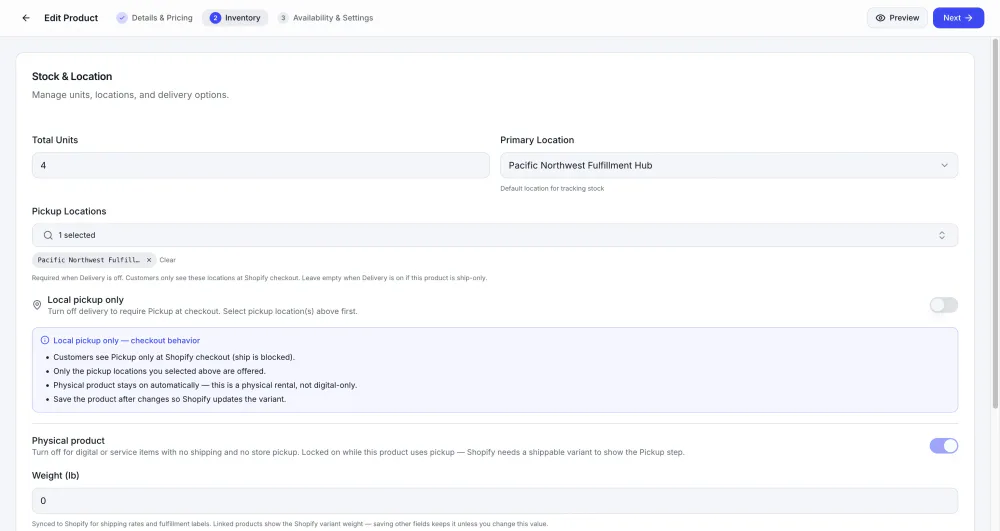
On the product's Inventory step, enter Total Units and choose a Primary Location, the default place you track that stock. That number is your fleet for the product.

You don't move stock up and down as items go out and come back. Rental Suite works out what's free on any date from the fleet size and the bookings against it.
Rental Suite
Product editor Inventory step with Total Units set to 4, the primary location, a pickup location and the local pickup only switch

One pool for rent, buy and subscribe

Rentals hold units for their dates, plus any turnaround days. Subscriptions hold a unit from the start until it's returned. Paid purchases come out of the fleet, and checkouts still in progress hold units too.

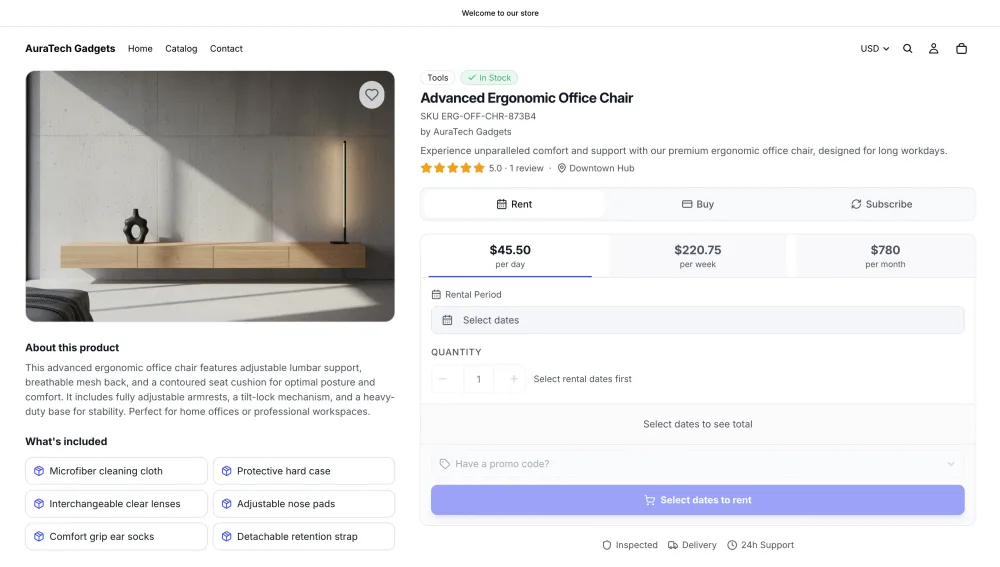
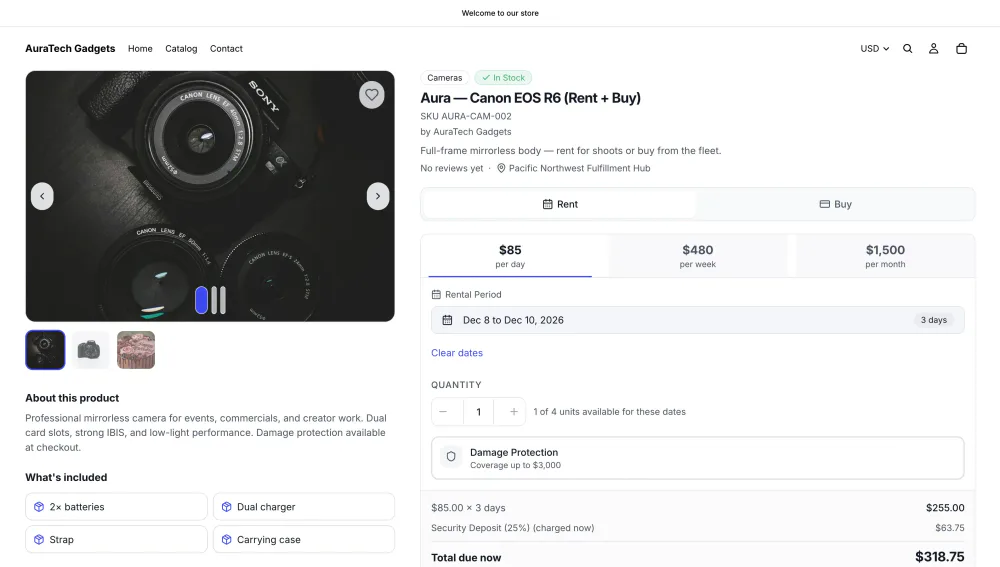
For each mode Rental Suite subtracts what's already promised and offers the rest. A shopper picking dates sees how many units are left for them, and a purchase can only take a unit that isn't out on rent, on a subscription or booked for coming dates.

Rental Suite
Camera product page after choosing dates, with the units left for those dates, the rental total, the security deposit and the total due

Rental stock management with buy-only units

Some shops keep a few units purely for sale. With per-unit tracking on, mark those units Buy-only: they're offered on the Buy tab and never rented, while the rest of the fleet stays shared.

When a Buy order is paid, Rental Suite lowers the fleet by the units sold. A serial unit sold this way is marked Sold and stays in the table for your records, out of the rental pool.

See utilization across the fleet

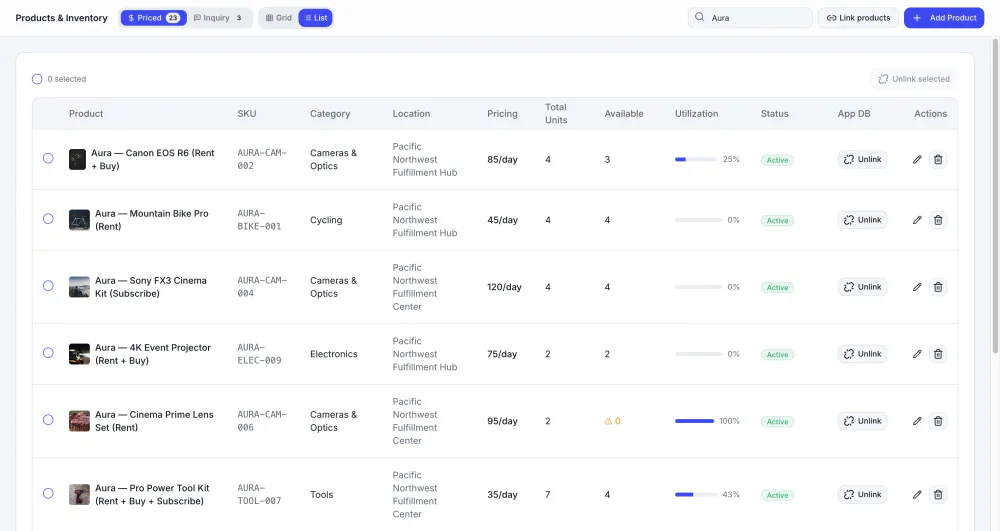
The Products & Inventory list shows each product's location, daily rate, total units, units available and a utilization bar: the share of units out right now. A product with nothing left shows a warning next to its zero, so the items that are always booked stand out from the ones that sit on the shelf.

Switch between list and grid views, or between priced and inquiry products.

Rental Suite
Products and Inventory list with daily rates, total units, units available, utilization and status for six rental products

Maintenance takes a unit out of service

Set a unit's fleet lane to Maintenance when it needs a repair or a check. It drops out of rentals, subscriptions and sales until you set it back to Available, and the product's summary counts it separately.

A unit on an active booking can't move to maintenance until you cancel the booking or reassign the unit.

03How it works

Set up rental fleet management in 4 steps

The steps a merchant takes in the Rental Suite admin, in order.

Read the setup guide

  1. Set Total Units

    On each product's Inventory step, enter how many units you own and pick the primary location.

  2. Choose the modes

    On Details & Pricing, turn on purchase or subscription pricing for the products you also sell or subscribe.

  3. Track units where it helps

    Turn on per-unit tracking for serialized items, and mark any sale-only units Buy-only.

  4. Watch the list

    Use the Products & Inventory list to check units available and utilization for every product.

05Get started

Try rental fleet management on your store

Install Rental Suite, then turn on rental fleet management in the admin. The setup guide walks through each screen.

06FAQ

Rental fleet management questions

Answers to common questions about rental fleet management in Rental Suite.

Still have questions?

Ask the team that builds the app. We reply within one business day.

What is rental fleet management software?

It's software that tracks how many units of each item you own and how many are booked, sold or out of service on any date. Rental Suite does this for each product, from one pool shared by rentals, subscriptions and sales.

Can I rent and sell the same item?

Yes. Rent and Buy share the product's fleet by default, and a sale can only take a unit that isn't rented or booked for coming dates. Mark units Buy-only if you want some kept for sale.

Do subscriptions use the same stock as rentals?

Yes. A subscription takes a unit from the shared pool for as long as it runs, so the date picker offers one fewer unit while it's out. The Subscribe option is on the Standard plan and up.

What does utilization mean in Rental Suite?

It's the share of a product's units that are out right now: total units minus units available, divided by total units. A camera with 4 units and 1 out shows 25%.

How do I take a unit out for repairs?

Turn on per-unit tracking and set that unit's fleet lane to Maintenance. It isn't rented or sold until you set it back to Available.