Subscribe rentals

Subscription management portal for your rental customers

Subscribers who want to cancel or change their card shouldn't have to email you and wait. Rental Suite adds a Subscriptions page to their customer account where they can check each plan, update the payment method or cancel.

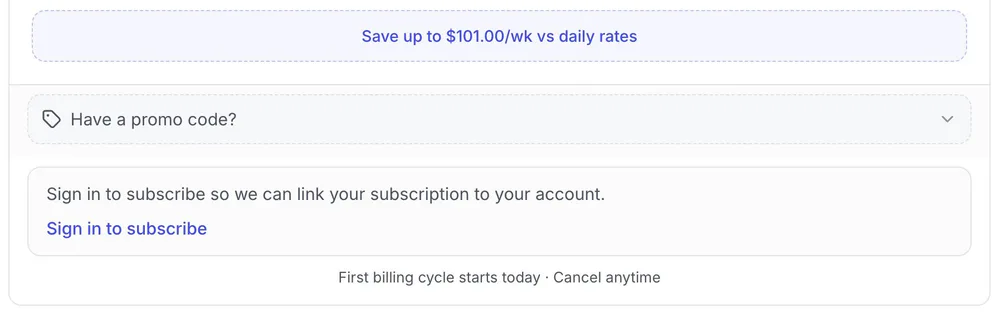
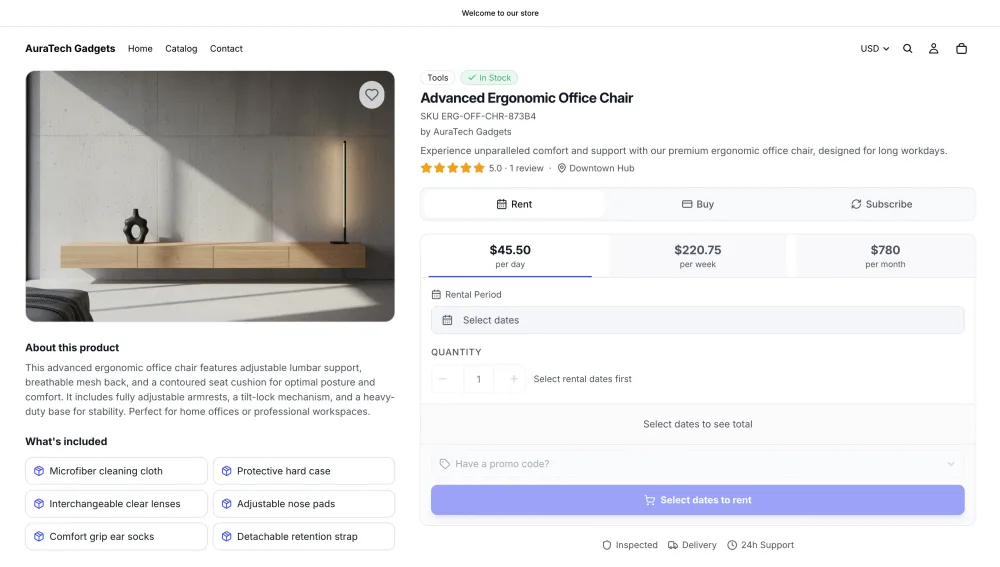
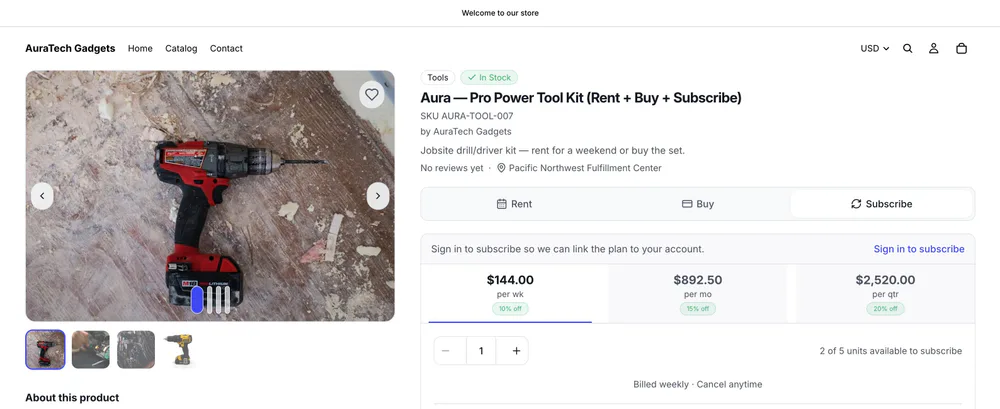
Product page Subscribe tab with the prompt to sign in so the plan is linked to the customer's account, above the plan prices

01See it in action

See customer subscription portal in the admin

A short walkthrough in the Rental Suite admin, with voiceover. It plays muted; press Play with sound to hear it from the start.

Read the setup guide

02Overview

Customer subscription portal in Rental Suite

A subscription management portal is where a customer goes to check and change their own subscription. With Rental Suite it's a Subscriptions page in your store's customer accounts, next to Orders in the account menu.

Each subscription shows its product, status, quantity, billing cycle, price per cycle, next billing date and start date. From there the customer can ask for a payment method update or cancel. There's no pause or skip: a subscription runs until it's cancelled, and the portal keeps to the two changes customers ask for most.

What subscribers see on the page

Each active subscription gets its own card, headed with the product name and showing:

  • Status, such as confirmed, overdue or ending
  • Quantity
  • Billing cycle and price per cycle
  • Next billing date and the date it started

Because customers sign in before they subscribe, every subscription is already linked to their account when they open the page. If they have none, the page says so.

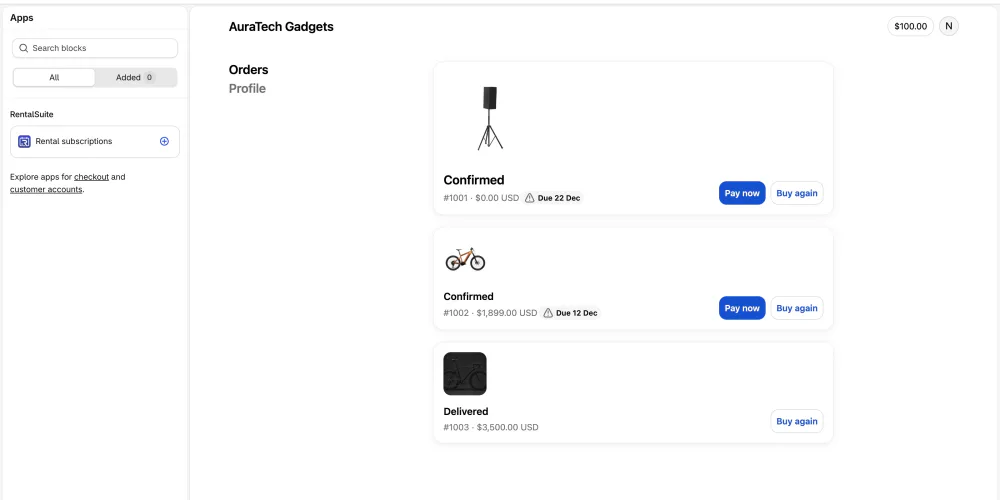
The page is the Rental subscriptions block from RentalSuite, which you add once in Shopify's customer account editor.
Rental Suite
Shopify's customer account editor with the Rental subscriptions block listed under RentalSuite, beside a customer's Orders page

Cancel from the customer subscription portal

Cancel subscription asks the customer to confirm, then stops future billing straight away and cancels the plan in Shopify. The customer gets a cancellation email and you see the change in Bookings.

If the gear is still with them, the subscription shows Ending: billing has stopped, the card asks them to return the item by the access end date, and the unit stays reserved until it's back. Signed-in subscribers can do the same from the product page, where a "You're subscribed" card shows their quantity, status and next billing date.

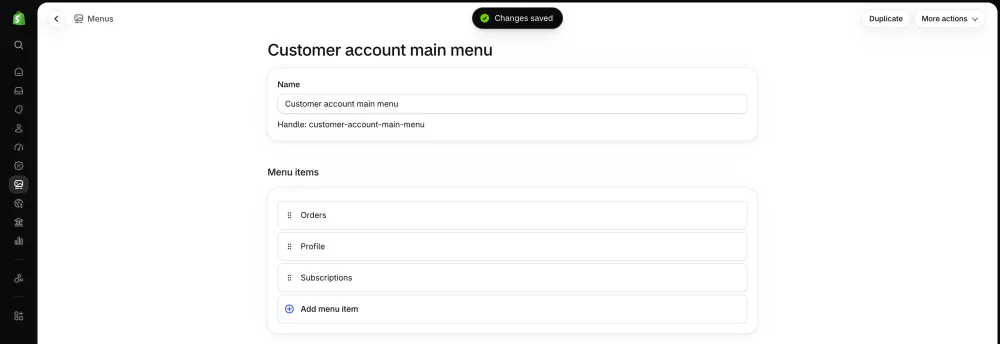
Customers reach these buttons from Subscriptions in the account menu, next to Orders and Profile.

Rental Suite
Customer account main menu saved with Orders, Profile and Subscriptions items

Update the payment method

When a card expires or a renewal fails, Update payment method has Shopify email the customer a secure link to change the card on file. Card details stay with Shopify.

The button shows on subscriptions bought through checkout, since those are the ones with a payment method saved in Shopify. It's hidden once a subscription is ending.

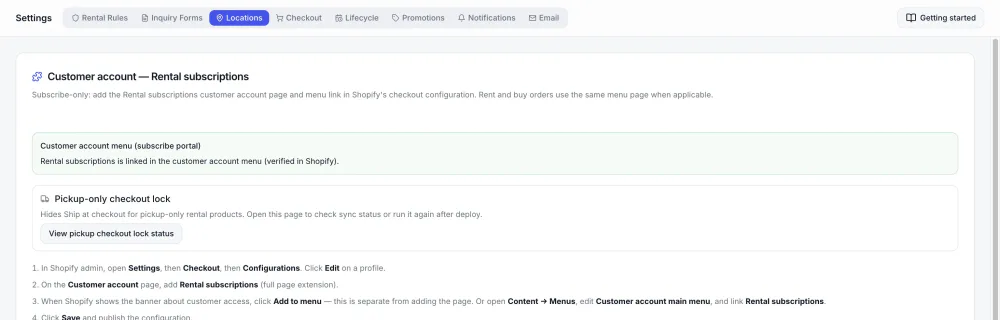
To check customers can reach the page, open Settings › Locations in Rental Suite. It shows whether Rental subscriptions is linked in the customer account menu.

Rental Suite
Rental Suite settings card confirming Rental subscriptions is linked in the customer account menu

Subscriptions are tied to the customer account

The Subscribe tab asks shoppers to sign in before they subscribe, so the plan is linked to their customer account from the first order. That link is what lets the portal find the subscription later.

It also keeps a customer to one active subscription per product. A second attempt shows a message pointing them to the subscription they already have, so nobody pays twice for the same item by mistake.

Rental Suite
Subscribe tab prompt asking shoppers to sign in so the subscription is linked to their account, with First billing cycle starts today

Every change shows in Bookings

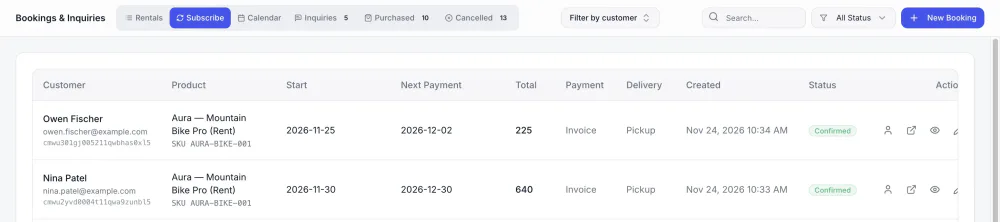
In Rental Suite, Bookings › Subscribe lists every subscription with its customer, product, start date, next payment, total, payment, delivery and status.

A cancellation from the portal shows there straight away: the subscription moves to Ending while the gear is out, or is cancelled at once if nothing is out, and its units go back to the shared fleet when it's done.

Rental Suite
Bookings Subscribe tab with two subscriptions, their start dates, next payment dates, totals, payment, delivery and Confirmed status

03How it works

Set up customer subscription portal in 4 steps

The steps a merchant takes in the Rental Suite admin, in order.

Read the setup guide

  1. Open your checkout configuration

    In your Shopify admin, go to Settings › Checkout › Configurations and click Edit.

  2. Add the Rental subscriptions page

    On the Customer account page, add Rental subscriptions, the full-page extension.

  3. Put it in the account menu

    Click Add to menu, or link it in Content › Menus › Customer account main menu, then save and publish.

  4. Check it as a customer

    Sign in to your store as a customer with a subscription and open Subscriptions next to Orders.

05Get started

Try customer subscription portal on your store

Install Rental Suite, then turn on customer subscription portal in the admin. The setup guide walks through each screen.

06FAQ

Customer subscription portal questions

Answers to common questions about customer subscription portal in Rental Suite.

Still have questions?

Ask the team that builds the app. We reply within one business day.

What is a subscription management portal?

It's a page where customers see and manage their own subscriptions. Rental Suite adds one to your store's customer accounts, listing each rental subscription with its status, cycle, price and next billing date.

Can customers pause or skip a cycle?

No. The portal lets customers update their payment method or cancel. A subscription bills every cycle until it's cancelled.

What happens when a customer cancels?

Billing stops straight away. If the item is still out, the subscription shows Ending and the unit stays reserved for them until it's returned.

How do customers update their card?

They click Update payment method and Shopify emails them a secure link to change it. Card details stay with Shopify.

Where do customers find the customer subscription portal?

In their customer account menu, next to Orders, once you've added the Rental subscriptions page and its menu link. The subscription confirmation email links to it too.