Product reviews

Review moderation for your product reviews: approve, hide and reply

A one-star review about a courier, or a review meant for another product, shouldn't go live without a look. In Rental Suite every review waits for you, and you publish, hide or reply from the app.

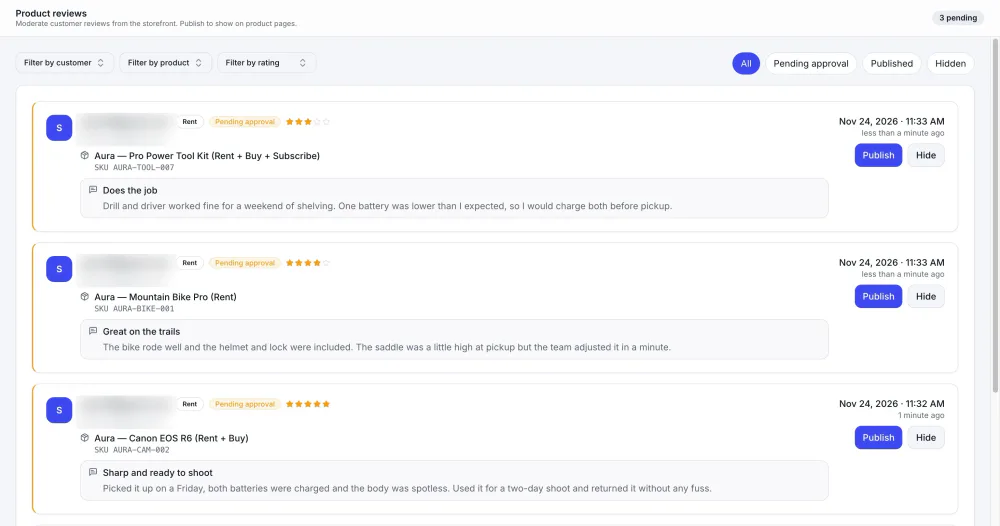
Product reviews page with three new reviews pending approval, each with its stars, product, title and text and Publish and Hide buttons

01See it in action

See review moderation in the admin

A short walkthrough in the Rental Suite admin, with voiceover. It plays muted; press Play with sound to hear it from the start.

Read the setup guide

02Overview

Review moderation in Rental Suite

Review moderation in Rental Suite happens on the Product reviews page in the app. Every new review arrives as Pending approval and stays off your product pages until you publish it.

From the list or a review's own page you publish it, hide it or move a hidden review back to pending. You can also write a public reply that shows under the review as a response from the store.

You can't change what the customer wrote. The review stays theirs, and your side of the story goes in the reply.

Product review moderation in three statuses

The list has a tab for each status, plus All. The buttons on each review change with its status, so the next step is one click away.

Every change asks you to confirm first, and says what will happen on the storefront.

  • Pending approval: Publish or Hide
  • Published: Hide from storefront
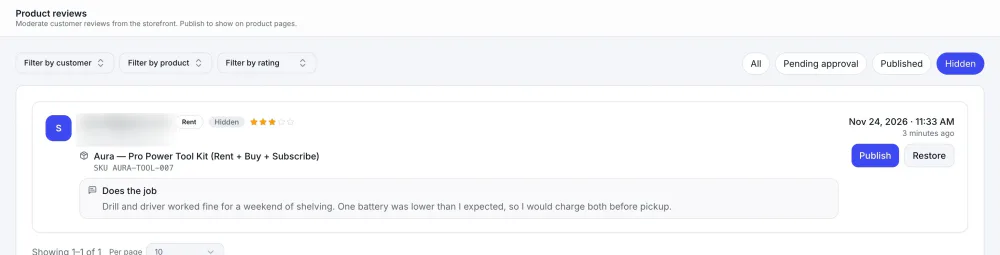
  • Hidden: Publish, or Restore to pending
Rental Suite
Product reviews filtered to Hidden, showing a hidden three star review with Publish and Restore buttons

Find a review by customer, product or rating

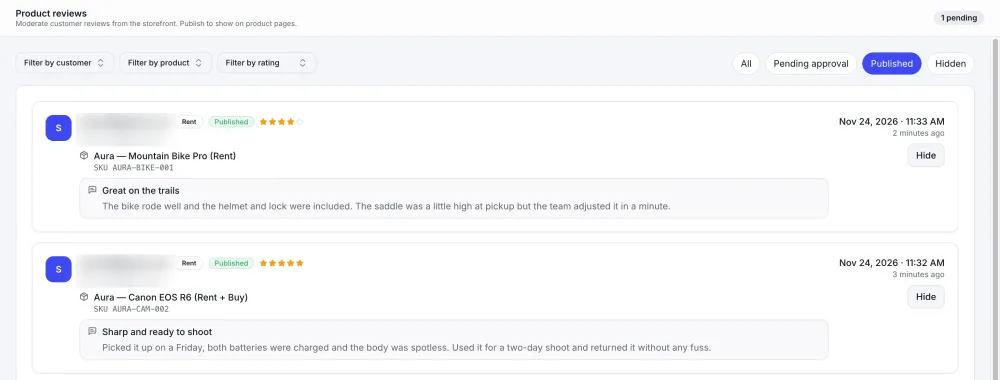
Three filters sit above the list: customer, product and star rating. Each takes more than one choice, so you can pull up every one and two star review for your cameras, or everything a single customer has written.

The filters work with the status tabs, and the list pages through reviews 10 at a time, or more if you change the page size.

Rental Suite
Product reviews filtered to Published with the customer, product and rating filters above a four star and a five star review

Open a review to see the booking behind it

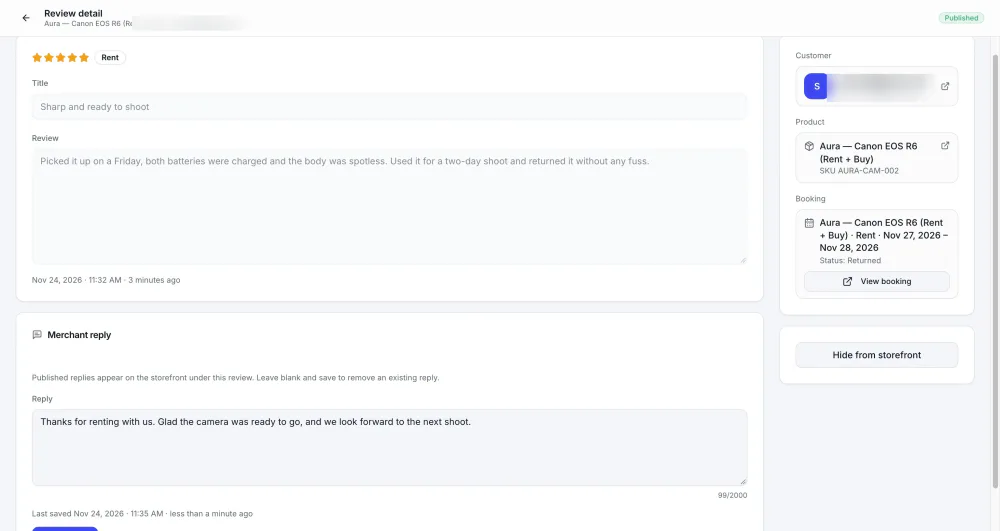
A review's page shows the stars, the booking type, the title, the review and when it was written. Beside it sit the customer, with a link to their profile, the product with its SKU, and the booking the review came from, with its status and a View booking button.

That's usually enough to tell a fair complaint from a mix-up before you decide what to do.

Rental Suite
Review page for a five star camera rental review with the customer, product and returned booking beside it and a saved merchant reply

Reply to customer reviews as the store

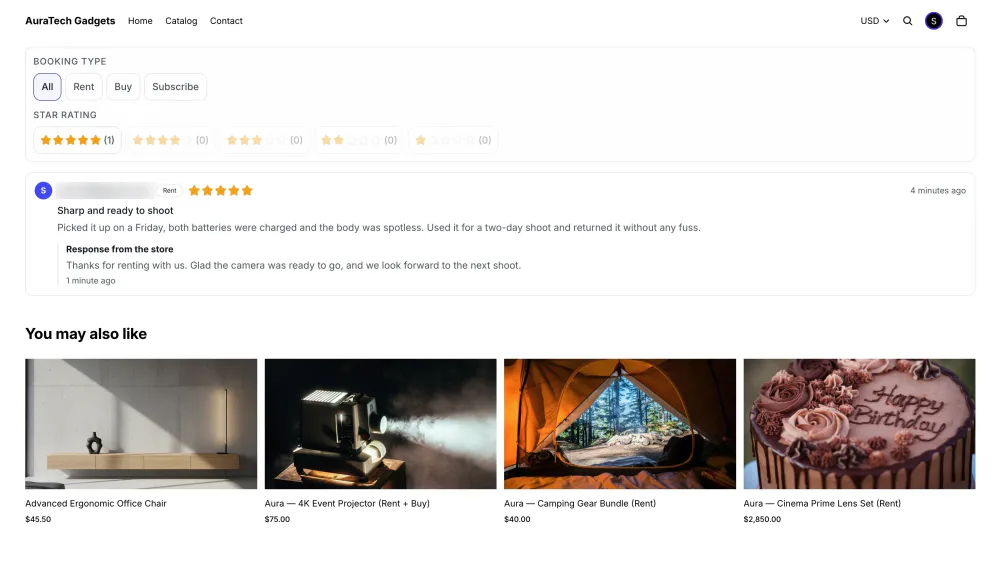
Under each review there's a Merchant reply box for up to 2,000 characters, with a counter as you type. Save reply stores it, and it shows on the product page under the review as Response from the store once the review is published.

To take a reply down, clear the box and save. Rental Suite doesn't email the customer about your reply. They see it with their own review when they're signed in on the product page.

  • Up to 2,000 characters
  • Shown under the published review
  • Clear and save to remove it
Rental Suite
Product page review with the store's reply shown underneath as Response from the store

Hear about each new review

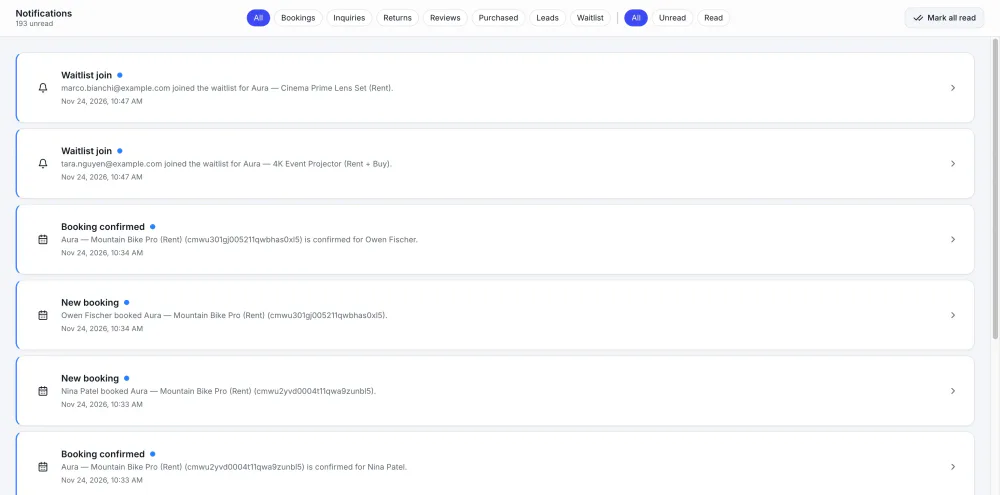
Every new review posts a New product review alert to the app's notification feed with the stars, the booking type and the product. The feed has a Reviews filter, and each alert opens the review it's about.

If your team doesn't want these alerts, switch off Product review in Settings. Reviews still wait in Pending approval either way.

Rental Suite
Notifications feed with recent alerts and filters for bookings, inquiries, returns, reviews, purchases, leads and waitlist

03How it works

Set up review moderation in 4 steps

The steps a merchant takes in the Rental Suite admin, in order.

Read the setup guide

  1. Open Product reviews

    In the app, open Product reviews and choose the Pending approval tab.

  2. Check the review

    Open it to see the customer, the product and the booking it came from.

  3. Publish or hide it

    Click Publish on storefront to show it, or Hide from storefront to keep it off the page.

  4. Reply if it helps

    Write a public reply and click Save reply. It shows under the review on the product page.

05Get started

Try review moderation on your store

Install Rental Suite, then turn on review moderation in the admin. The setup guide walks through each screen.

06FAQ

Review moderation questions

Answers to common questions about review moderation in Rental Suite.

Still have questions?

Ask the team that builds the app. We reply within one business day.

What is review moderation?

Review moderation means checking reviews before shoppers see them. In Rental Suite every new product review waits in Pending approval until you publish or hide it.

Can I edit or delete a customer's review?

No. The text stays as the customer wrote it. You can hide a review so it leaves the product page, and answer it with a reply.

Does a hidden review count toward the star rating?

No. The average rating and review count on the product page only include published reviews.

Is the customer told when I reply or hide a review?

Not by email. When they're signed in on the product page, they see their review's status and your reply.

Can I reply before I publish a review?

Yes. The reply saves on any review, and it shows on the product page once the review is published.

Does this work for Google or Yelp reviews?

No. Review moderation in Rental Suite covers the product reviews customers leave on your own store. It doesn't connect to Google, Yelp or other review sites.