Email and notifications

A new booking notification, and every alert after it, in one feed

Bookings, returns and waitlist joins are easy to miss when you're busy at the counter. Rental Suite posts a new booking notification in your admin for each one, plus alerts for returns, late rentals and reviews, in one feed.

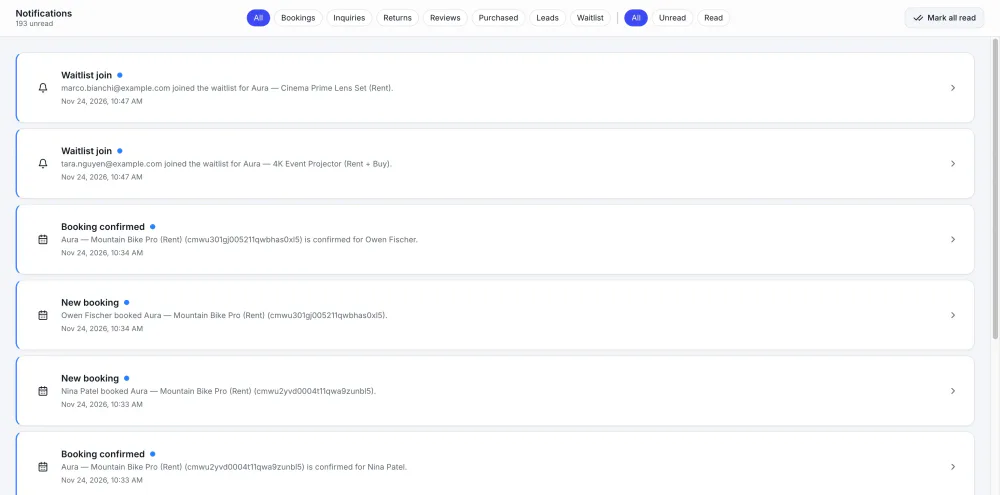
Notifications feed with waitlist joins, booking confirmed and new booking alerts, filters for bookings, inquiries, returns, reviews, purchases, leads and waitlist, and Mark all read

01See it in action

See staff notifications in the admin

A short walkthrough in the Rental Suite admin, with voiceover. It plays muted; press Play with sound to hear it from the start.

Read the setup guide

02Overview

Staff notifications in Rental Suite

Every new booking notification and staff alert in Rental Suite lands in one place: the Notifications page in the app, with the unread count shown at the top of the page. A new booking from your product page, a rental that's due back, a review waiting for approval: each shows up as an alert with the customer, the product and a link to the record.

These alerts are for your team inside the app; your customers get emails instead. In Settings › Notifications you choose which kinds of alert appear, so the feed holds what your team acts on.

Every new booking notification and alert your team can get

Rental Suite has an alert for each event your team might act on:

  • Bookings: New booking, Booking confirmed, Booking cancelled, and Paid booking needs attention when a payment comes in for dates or stock that are no longer free.
  • Returns: Return due tomorrow, Overdue rental and Return completed.
  • Leads and reviews: Purchase interest, Waitlist joins and new Product review.
  • Account: Customer data requests and booking limit notices for your plan.

A new quote request from your inquiry form shows as New inquiry request, under the New booking alert.
Rental Suite
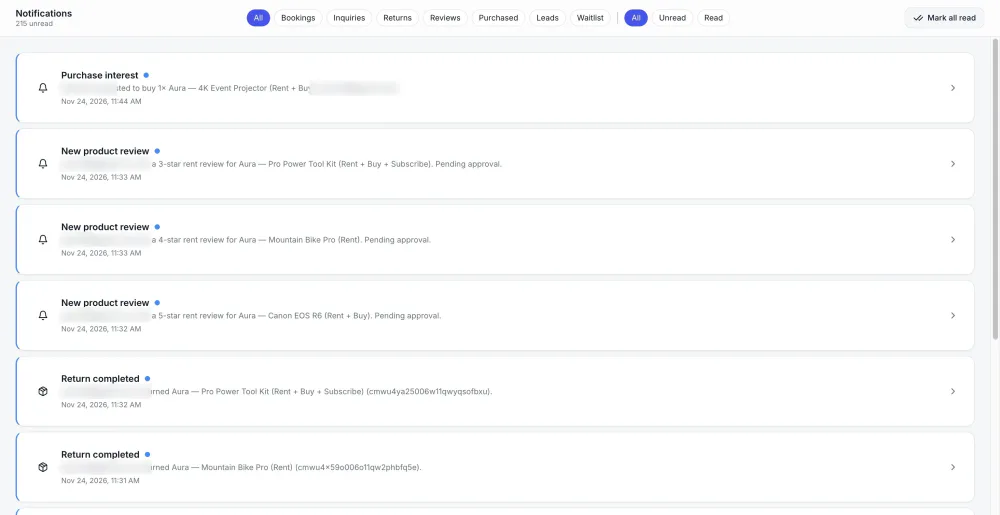
Notifications feed with Purchase interest, New product review and Return completed alerts, customer details blurred, each naming the product and time

Notification preferences for each alert

Settings › Notifications lists every alert type with a switch. All of them start on. Turn off the ones your team doesn't use and click Save preferences.

Switching a type off stops new alerts of that kind being added to the feed; it doesn't affect any email your customers get. Customer emails have their own Enabled switches under Email Templates. A quote request follows the New booking switch.

Rental Suite
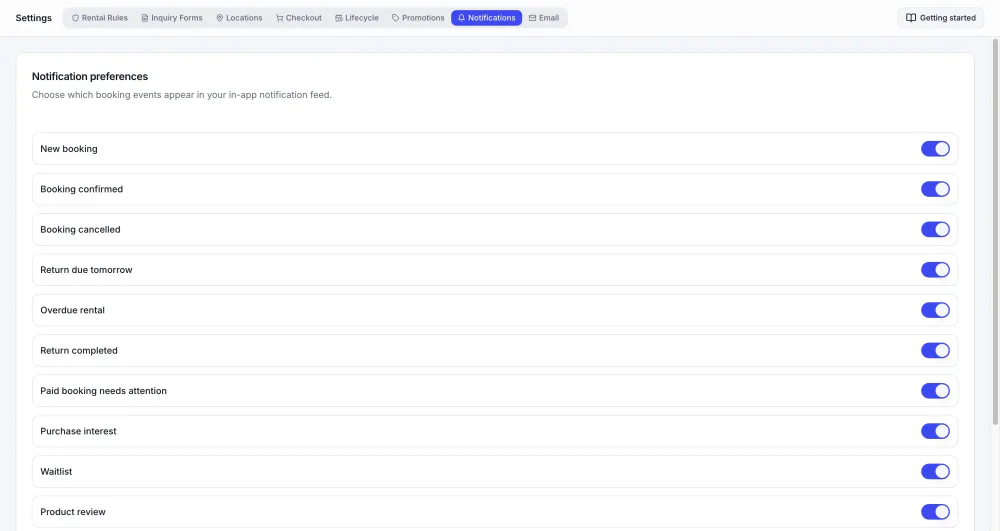
Notification preferences with a switch for each alert: new booking, booking confirmed, booking cancelled, return due tomorrow, overdue rental, return completed, paid booking needs attention, purchase interest, waitlist and product review

Filter the feed by area

The top of the Notifications page has a filter for each area: Bookings, Inquiries, Returns, Reviews, Purchased, Leads and Waitlist. Next to it, switch between All, Unread and Read.

So whoever handles returns can open Returns and Unread and see only what's waiting for them, while someone else works through new bookings. The feed shows ten alerts a page, newest first.

Staff notifications for bookings, without the email pile

Staff notifications stay inside the Rental Suite admin. The one exception is the booking limit notice, which is also emailed to the store owner. Everyone who opens the app in your store's admin sees the same feed and the same unread count.

That keeps the team's inbox for customers. If you also want an email for each order, Shopify's own staff order notifications still cover the orders on your store.

03How it works

Set up staff notifications in 4 steps

The steps a merchant takes in the Rental Suite admin, in order.

Read the setup guide

  1. Open Settings › Notifications

    In Rental Suite, open Settings and the Notifications tab.

  2. Choose your alerts

    Leave on the alert types your team acts on and switch off the rest.

  3. Save preferences

    Click Save preferences. New events of the types you left on start appearing in the feed.

  4. Work from the feed

    Open Notifications, filter by area or unread, and click an alert to go straight to its record.

05Get started

Try staff notifications on your store

Install Rental Suite, then turn on staff notifications in the admin. The setup guide walks through each screen.

06FAQ

Staff notifications questions

Answers to common questions about staff notifications in Rental Suite.

Still have questions?

Ask the team that builds the app. We reply within one business day.

How do I get a new booking notification?

Keep the New booking alert on in Settings › Notifications. Each new booking then appears in the Rental Suite Notifications feed with the customer, the product and a link to the booking.

Are staff notifications sent by email?

Mostly no. They're in-app alerts in the Rental Suite admin; only the booking limit notice is also emailed to the store owner. Customer emails are separate and are set up under Email Templates.

Which alerts can I turn off?

Any of them. Each alert type, from New booking to Product review, has its own switch in Settings › Notifications, and all of them start on.

Where do new quote requests show up?

As a New inquiry request alert, which follows the New booking switch. Use the Inquiries filter on the Notifications page to see only those.

Does everyone on my team see the same notifications?

Yes. The feed belongs to your store, so everyone who opens Rental Suite in your admin sees the same alerts and the same read or unread state.